



Tamil Nadu’s “Anywhere Registration” system allows property-related documents to be prepared, submitted, and processed digitally through the Registration Department’s online portal. This system reduces the need for physical visits to Sub-Registrar Offices during the initial stages of registration and enables faster, more transparent processing.
Under this digital framework, different types of first-time sale transactions—such as sale deeds, mortgages, and security-related documents—can be handled online with Aadhaar-based verification and electronic document submission.
One important transaction under this system is the Deposit of Title Deeds, which is widely used in home loans and business loans. It plays a key role in creating a legal security interest in favour of a bank or financial institution without transferring ownership of the property.
What Is a Deposit of Title Deeds?
A Deposit of Title Deeds is commonly used when a property owner gives the original title documents to a bank or financial institution as security for a loan.
The property is not sold or transferred to the bank. The owner normally continues to possess the property, but the lender receives a security interest over it until the loan is cleared.
Under Tamil Nadu’s Presenceless Registration system, the document can be prepared and submitted through the online portal without the parties visiting the Sub-Registrar Office during the online filing stage.
Start the Online Application
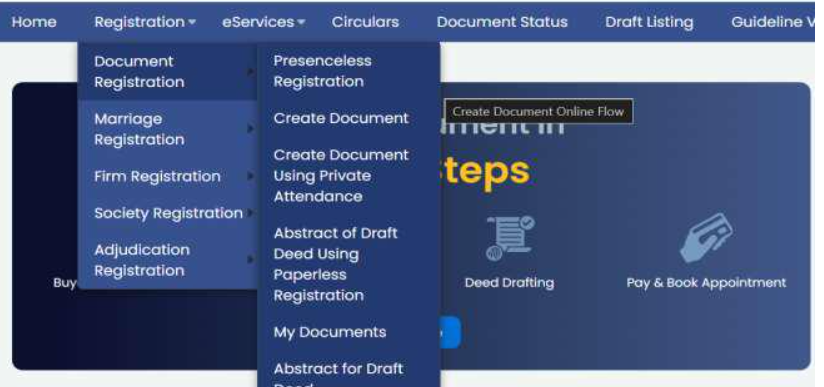
Log in to the Registration Department portal and go to:
Registration → Document Registration → Presenceless Registration
Select “Deposit of Title Deeds” from the Nature of Document dropdown. Read the prerequisites, internet and device requirements before clicking “Proceed.”
The process requires a stable internet connection, webcam and supported fingerprint or iris biometric device.

Add the Mortgagor or Depositor
The mortgagor or depositor is the person or organisation offering the property title deeds as security.
The portal allows the following party types:
- Individual
- Company, firm or trust
- Government
For an individual, details such as name, date of birth, relationship, address, contact information and identification proof must be entered. Companies, firms and trusts must provide their entity name, TAN, address and contact information.
Aadhaar is mandatory for all applicable executing parties.
Enter the Mortgagee or Bank Details
The mortgagee is the bank, financial institution or government body providing the loan.

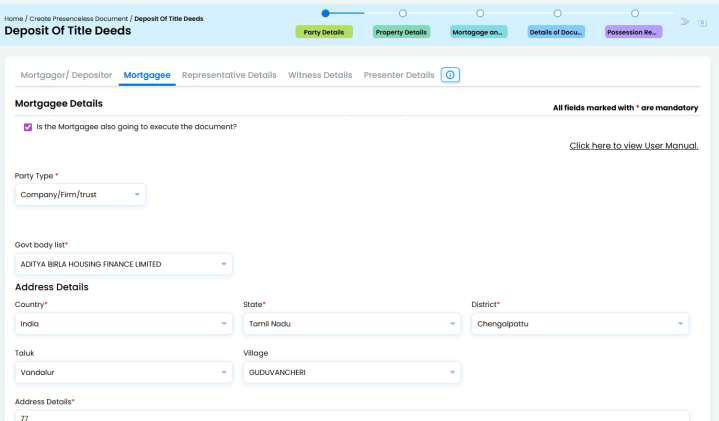
The permitted mortgagee categories are:
- Company, firm or trust
- Government
Select the concerned bank or institution from the available dropdown and enter its address and contact details. The portal also asks whether the mortgagee will execute the document.
Representatives, Witnesses and Presenter
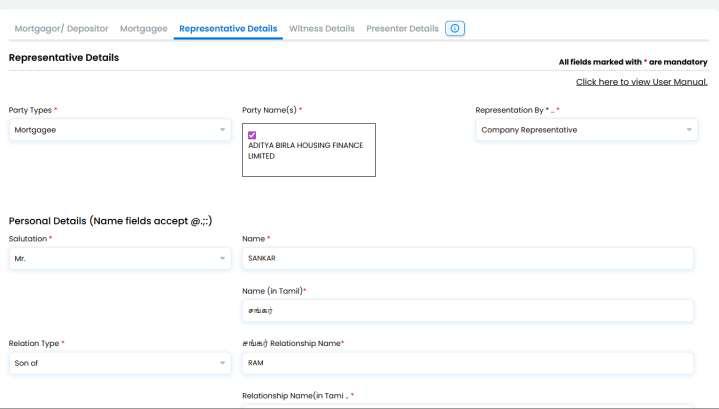
A representative may be added when a party is unavailable to execute the document or when the party is a minor. Depending on the party type, the representative may be a power agent, company representative, government representative, curator or liquidator.
Two execution or identification witnesses must be added. Aadhaar must be used as their identification proof. The portal also provides a “Consenting Witness” option where applicable.
The claimant is selected as the presenter by default. This can be changed by selecting another existing party or adding a different presenter.

Enter the Property Details
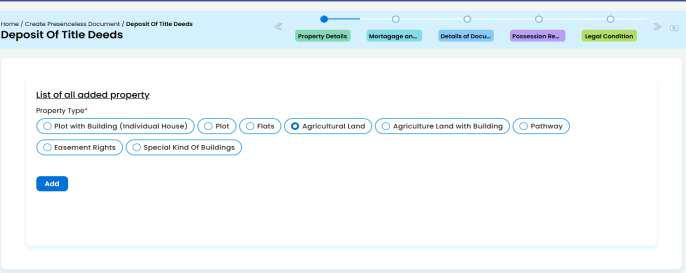
Choose the correct property type. The portal displays options including:
- Plot
- Flat
- Plot with building or individual house
- Agricultural land
- Agricultural land with building
- Pathway
- Easement rights
- Special kind of building
Enter the Sub-Registrar Office, registration village, guideline village, district, taluk, local body, ward, block and town-survey details wherever applicable.

The Patta number or another title number can also be added. The portal requires at least one of the following:
- Previous document
- Patta number
- Other title number
Add Survey, Extent and Boundary Information
Select the unit of measurement and state whether the property is classified as Natham or rural land. Choose either a single survey or linked survey and enter the survey number and subdivision number.
Other required information may include the land type, street name, total extent, conveyed extent and market value.
Next, select regular or irregular boundaries and enter the north, south, east and west boundary descriptions. Linear measurements, property remarks and property items must also be entered wherever applicable.
Provide the Loan and Security Details
Enter the following loan information:
- Mortgage loan amount
- Purpose of the loan
- Repayment period
- Rate of interest
- Frequency of interest payment
- Whether the secured property belongs to the mortgagor
- Reason for availing the loan
The portal contains prefilled legal conditions relating to ownership, possession, existing encumbrances, competing claims, sale agreements and powers of attorney.

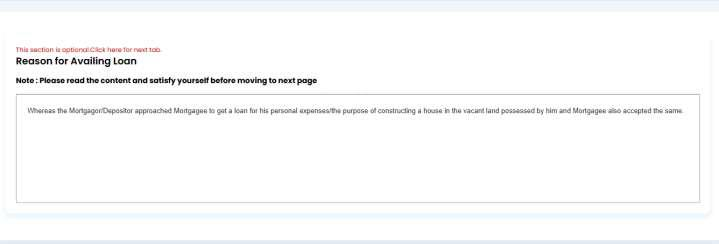
These conditions are editable recitals. They must be checked carefully against the actual property records and loan transaction instead of being accepted automatically.
Preview the Document and Check the Fees
Enter the place of execution, select the Sub-Registrar Office and verify the complete document preview.
The portal then displays the loan amount, system-calculated value, stamp duty, registration fee, computer fee, welfare-fund fee and total amount payable.

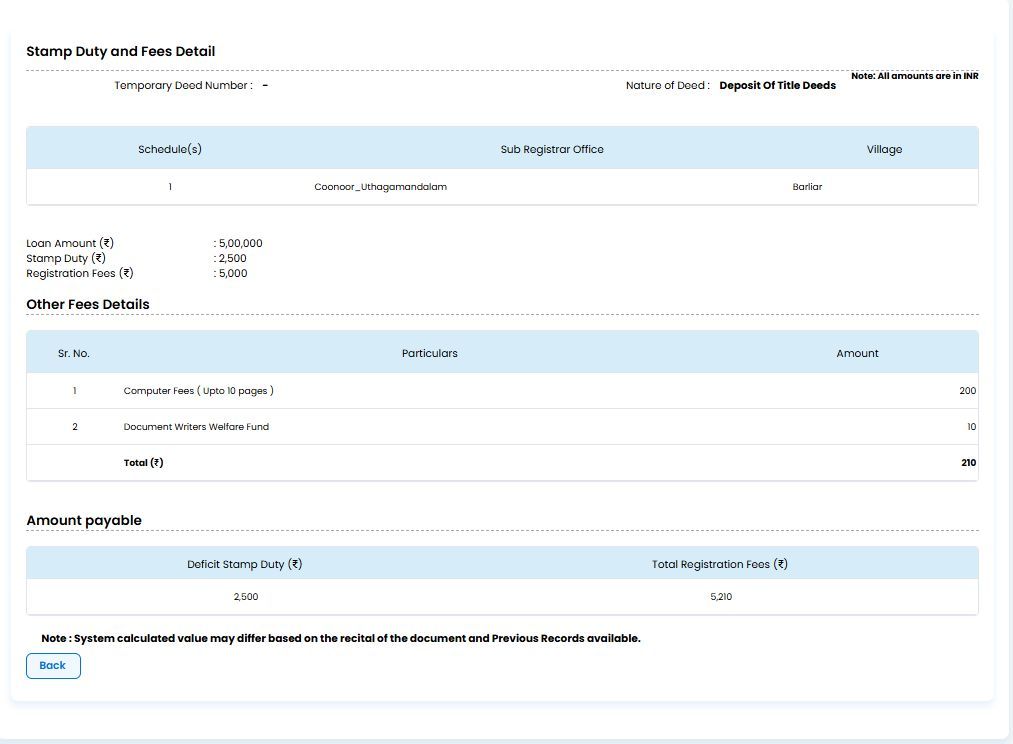
The amounts shown above are only from the manual’s sample transaction. Actual charges depend on the document, loan amount, recitals and Department records.
The Department also warns that the system-calculated value may change based on the document recitals and previous records available in its system.
Create and Upload the Document
Click “Create Document.” The portal generates a Temporary Document or TP number.
Use the TP number to locate the application under “My Documents.” Upload the required party records, property image and applicable supporting or reference documents. Save the files and confirm that the document has been submitted successfully.

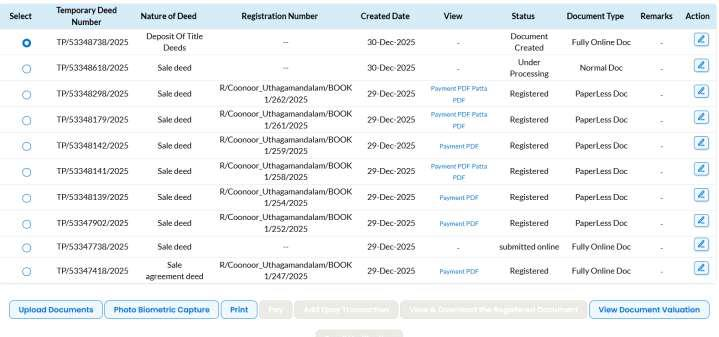
Complete Aadhaar Photo and Biometric Validation
Open “Photo Biometric Capture” from the My Documents page. Every applicable party must complete the following:
- Capture photograph
- Submit the photograph
- Capture fingerprint or iris biometric
- Validate the biometric against Aadhaar
Each completed verification should display “Validated Successfully.”
Print Before Making Payment
After all required parties have completed biometric verification, the “Pay” and “Add e-Pay Transaction” options become available.
The document must be printed before payment. If payment is attempted first, the portal will display an alert asking the user to print the document.
Check the downloaded PDF carefully to ensure that it contains:
- Correct party details
- Property and survey details
- Uploaded supporting documents
- Aadhaar-validated party information
- Correct loan and security particulars
After verification, click “Pay,” select the applicant type and complete the online payment.
The status will change to “Submitted Online.” The document will then be locked from further editing and sent to the Registration Department’s back office for the remaining registration process.
Why Careful Verification Matters
A wrong survey number, extent, title reference, bank detail or legal recital can delay the registration or create problems with the loan security.
Verified.RealEstate can assist with property-document review, Patta and survey verification, Encumbrance Certificate analysis, portal data entry, banking coordination and the biometric equipment required for the online process. This helps property owners complete the transaction with fewer errors and avoid repeated corrections.