



Why TNGIS matters before buying any plot
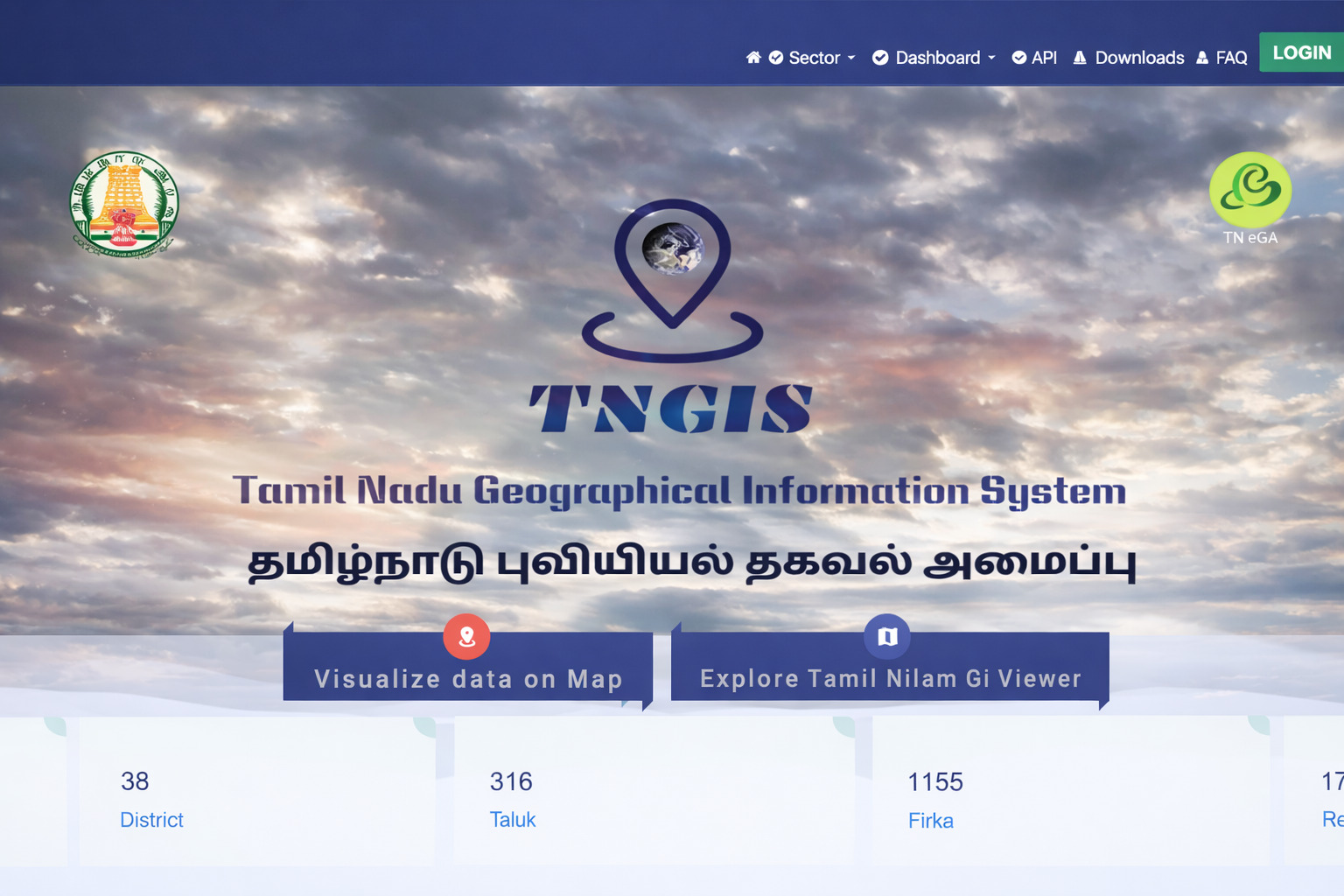
The Tamil Nadu Geographical Information System (TNGIS) is not a normal map.
It is a government-level GIS platform that integrates spatial and non-spatial data from multiple departments into a single uniform system.
Unlike Google Maps, TNGIS shows:
- Official survey boundaries
- Government-mapped roads and road widths
- Administrative jurisdictions
- Water bodies and buffers
- Infrastructure and department layers
This is why banks, valuers, and lawyers rely on GIS verification before approving loans or developments.
Pinpoint the Exact Plot Location
Step 1: Open the official TNGIS Generic Viewer
Use only the official portal:
👉 https://tngis.tn.gov.in/generic_viewer/
This platform exists to eliminate:
- Data mismatch between departments
- Location inaccuracies
- Assumed access claims
Step 2: Search for the location

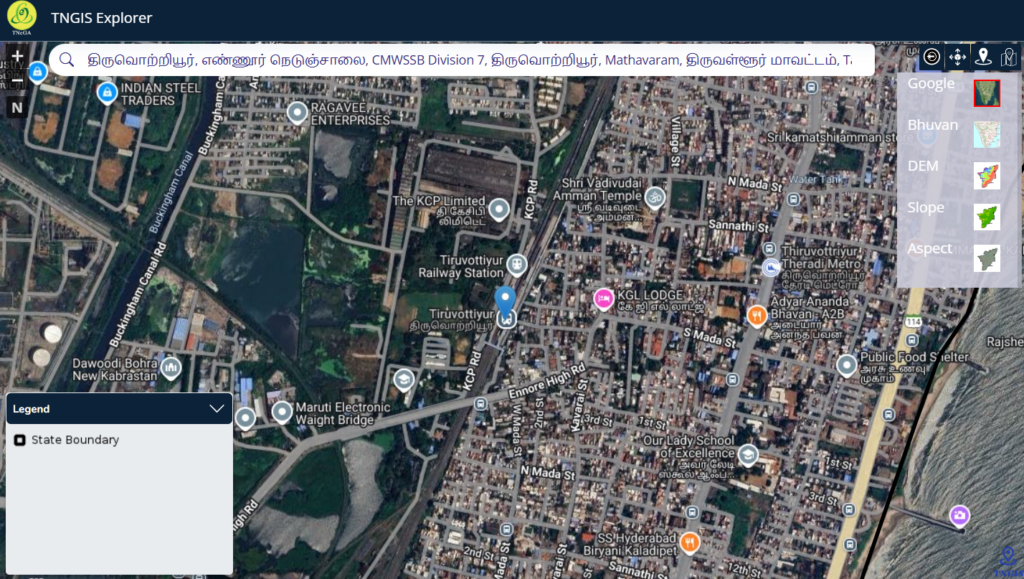
Use the Search Location bar to enter:
- Village name
- Area/locality name
- Nearby landmark or main road
📌 If the plot is interior, first locate the nearest major road, then zoom inward.
Step 3: Zoom and align with real-world landmarks

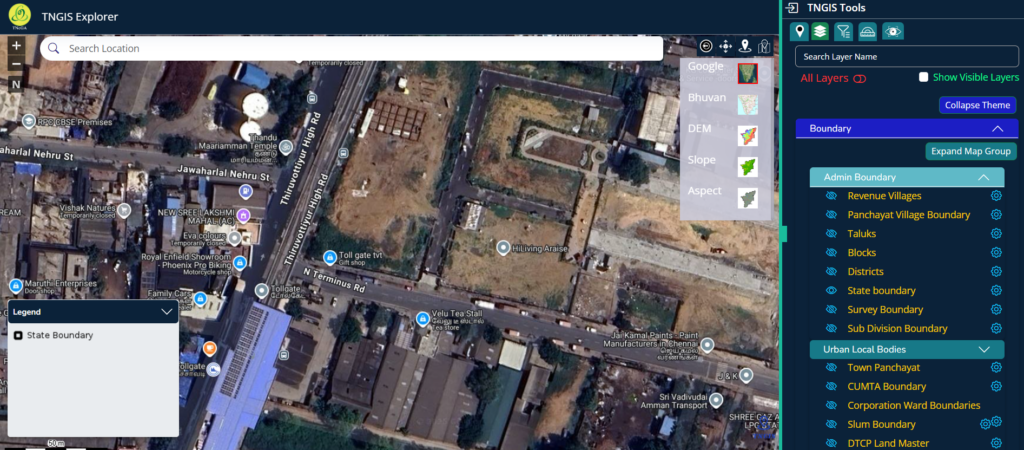
Gradually zoom in and match:
- Major roads
- Railway lines
- Metro corridors
- Water bodies
- Large buildings
This ensures you are not mistaking adjacent surveys for your land.
Step 4: Pinpoint using coordinates (most accurate method)
If available, use latitude & longitude from:
- FMB / TSLR sketch
- Surveyor report
- GPS site reading
Go to Measure & Navigation → Go To Location
Enter decimal coordinates → Submit.
This locks the exact legal location.
Step 5: Confirm jurisdiction using Boundary layers
Open Layer List → Boundary and enable:
- State Boundary
- Revenue Boundary
- Rural / Urban Boundary
- Department Jurisdictions
This confirms whether the land falls under:
- Panchayat
- Municipality
- Corporation (GCC)
⚠️ Jurisdiction affects:
- Approval authority
- Minimum road width norms
- Development rules
Once confirmed, do not move the map randomly.
Understanding the Layer System
Layer List overview
The Layer List panel allows you to control what appears on the map.
Layer categories include:
- Boundary
- Infrastructure
- Water Bodies
- Natural
- Habitation
- Emergency Facilities
- Misc
- Department-Specific Layers
- Government Offices / Facilities
Each layer has an eye icon:
- Closed eye → hidden
- Open eye → visible on map
This is how you distinguish legal reality from assumptions.
Infrastructure → Transport
Step 6: Open Infrastructure → Transport
This section determines road access and road type.
Available transport layers include:
- Streets (GCC)
- Village Roads
- Other District Roads
- Major District Roads
- State Highways
- National Highways
- Railway Line
- Airport Location
- TNRD Bridges
- Road of Width (GCC)
- Chennai Metro Rail Route
- Chennai Metro Rail Station
Step 7: Turn ON road layers one by one

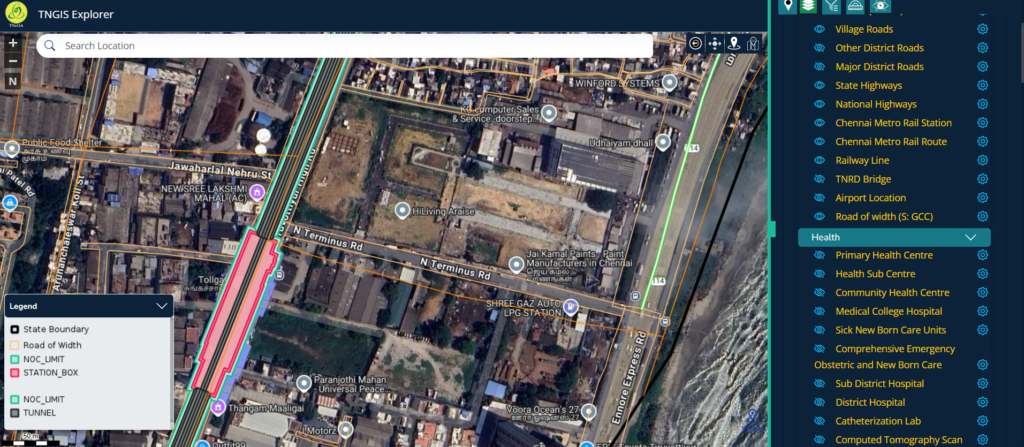
Click the eye icon for relevant road layers.
Start with:
- Village Roads
- District Roads
- Major Roads / Highways
Now zoom into your exact survey boundary.
✔ If the survey polygon touches a mapped road → legal access likely
✖ If it touches only a thin track or nothing → high risk
📌 Not every visible line is a legal road.
Only mapped transport layers count.
Step 8: Check “Road of Width (GCC)”
Enable:
- Road of Width (GCC)
If a width corridor overlay appears, it indicates officially mapped road width.
This helps verify:
- Whether the approach road meets approval norms
- Whether “wide road” claims are genuine
Step 9: Metro layers (context only, not access)
Enable:
- Chennai Metro Rail Route
- Chennai Metro Rail Station
This verifies “near metro” claims but does NOT create legal access.
Real example: Thiruvotriyur High Road – HiLiving Arise plots

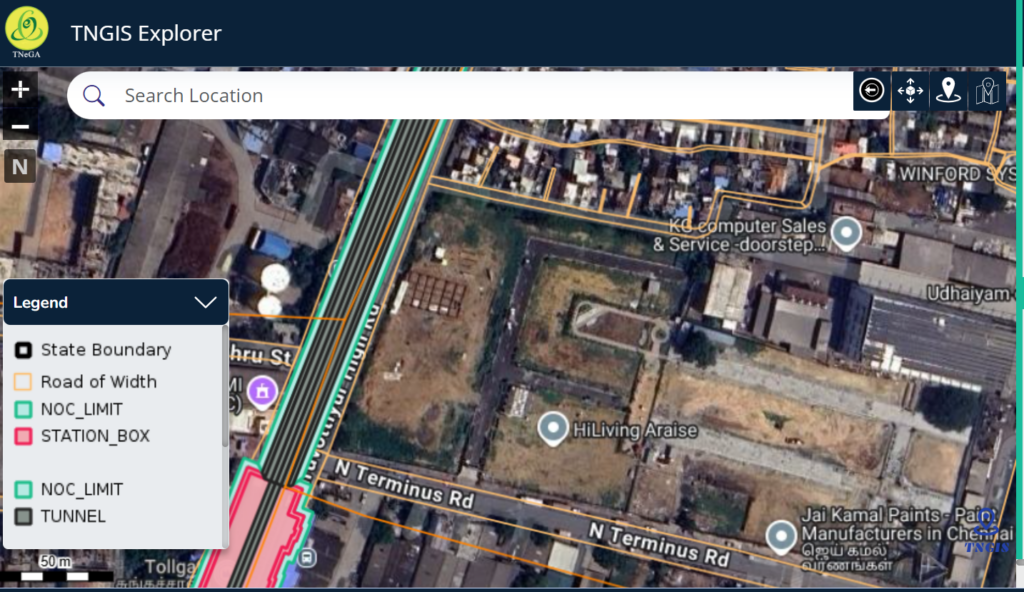
By locking the map to Thiruvotriyur High Road and enabling
- Road of Width (GCC)
- Chennai Metro Route
- Chennai Metro Station
This clearly shows:
- Which plots truly have direct access to the main road
- Which rely on internal or secondary access
- How infrastructure overlays change the real picture
This is exactly how seller claims get tested against government data.
Spatial Analysis Tools (Location Intelligence)
What Spatial Analysis does
Under Spatial Analysis, you can analyse point-based facilities.
Available point layers include:
- Airport Locations
- Anganwadi Centres
- Arts Colleges
- Block Offices (TANFINET)
- Government facilities
Analysis options:
- Nearest
- Nearby
- Attribute Query
You can choose the number of features and locate them on the map.
This is useful for:
- Livability assessment
- Valuation context
- Infrastructure proximity
Measure & Navigation Tools

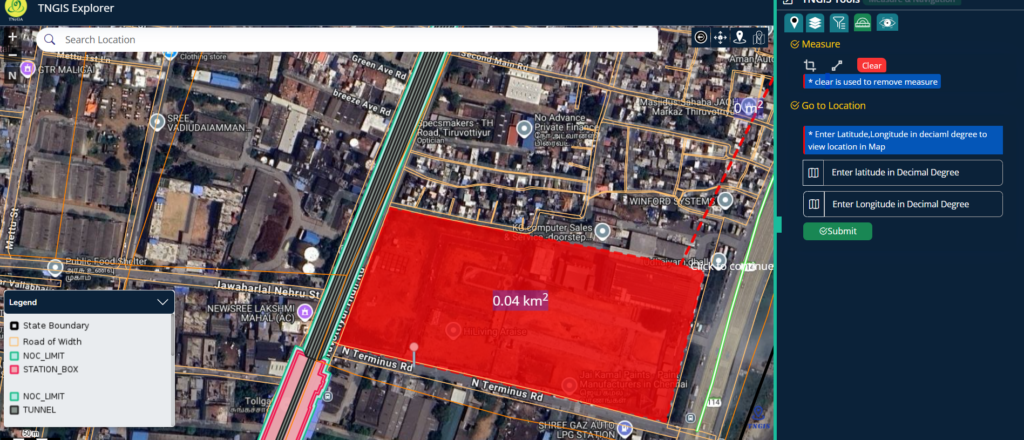
Measure tool
Use it to:
- Measure distance
- Measure area
- Visually estimate approach distances
Use Clear to remove measurements.
Go To Location tool
Enter Latitude & Longitude (Decimal Degrees) to jump to an exact point.
This avoids:
- Name confusion
- Boundary assumptions
- Wrong survey checks
What TNGIS shows vs what you must still verify
TNGIS helps you visually confirm:
✔ Survey boundaries
✔ Legal road access
✔ Road type and width
✔ Jurisdiction
✔ Infrastructure overlays
You MUST still verify off-map:
- FMB / TSLR Sketch – boundary & access confirmation
- Patta / Chitta / A-Register – ownership & classification
- Site visit – blocked access, gates, encroachments
Verified Services
While the TNGIS Generic Viewer helps you visually confirm plot location, legal road access, and road width, it does not replace document-level verification or on-ground validation. For buyers who want absolute clarity before paying an advance, Verified.RealEstate offers professional property due-diligence services that combine GIS verification, survey sketch validation (FMB/TSLR), patta and revenue record checks, and site-level access verification—ensuring that what you see on the map truly matches the legal reality on paper and on the ground.